How to Read Core Temp
Every number in the Core Temp window explained in plain English, so you know at a glance whether your processor is relaxed, working hard or running too hot.
 coretemp.org Editorial Team8 min readUpdated Oct 19, 2026
Key Takeaways
- The large per-core numbers are live readings from each core's digital thermal sensor.
- Tj. Max is the ceiling where the CPU starts to throttle, not a target to reach.
- Min and Max reset when you restart Core Temp, so reopen it before a new test.
- Sustained readings within 15–20°C of Tj. Max deserve attention.
Core Temp looks simple, but the compact window packs a lot of information into a few lines. Once you know what each field means, a two-second glance tells you whether your cooling is doing its job. This guide walks through the window from top to bottom.
Processor Information Panel
The top half describes the chip Core Temp is reading. Model confirms the exact processor, which matters on laptops where marketing names hide very different chips. Platform is the socket or package, Frequency shows the live clock and multiplier, and VID is the voltage the CPU is requesting. Newer builds add P-Core and E-Core tooltips on hybrid Intel chips, so you can tell performance cores from efficiency cores.
If the model line is wrong or blank, update to the latest release from our Core Temp download page before trusting any temperature.
Temperature Readings Explained
This is the part you will look at most. Each row is one physical core.
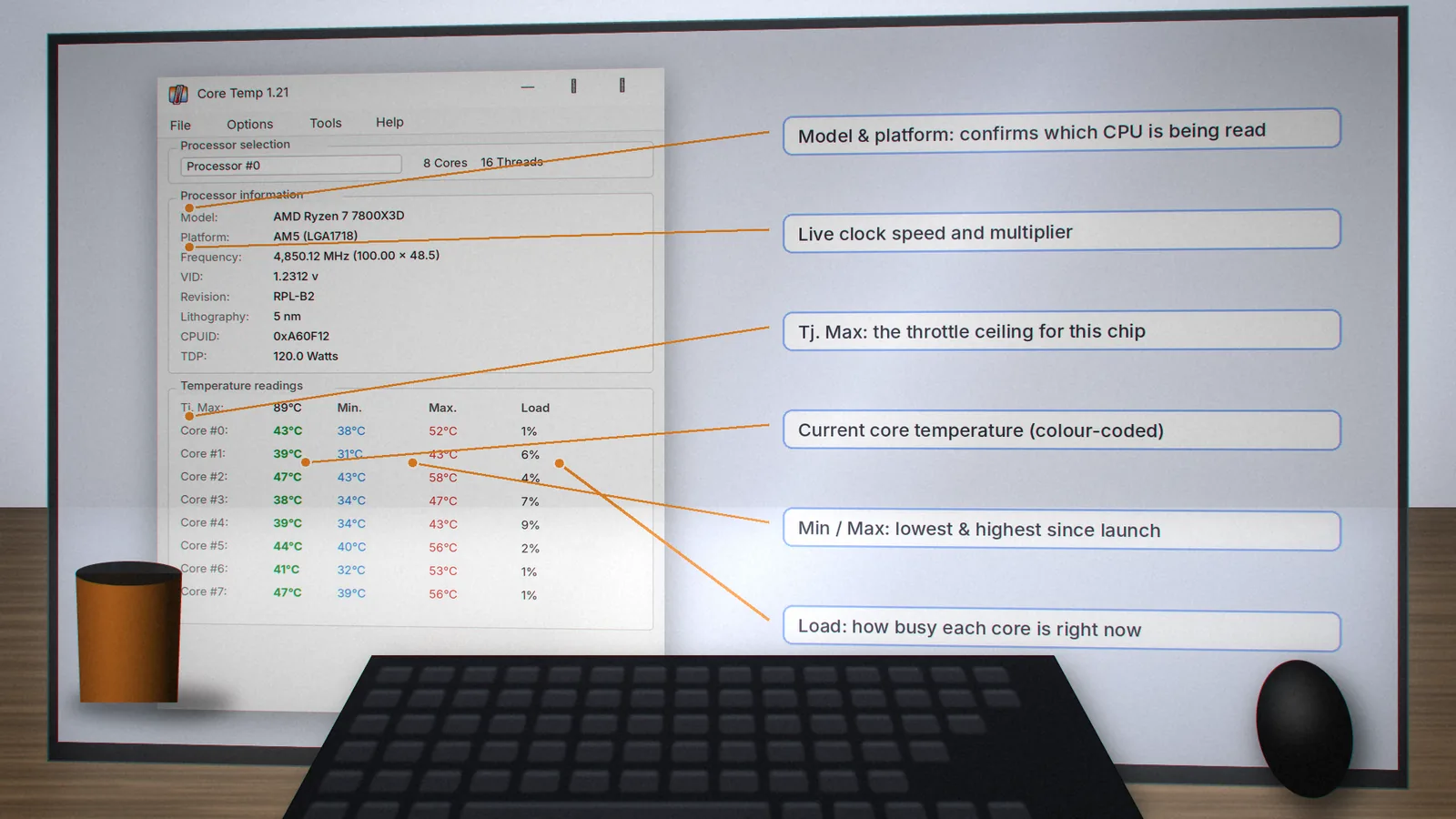
- Current temperature: the bold, colour-coded number. It refreshes every second by default.
- Min. and Max.: the lowest and highest values seen since Core Temp launched. Max is perfect for checking how hot a game or render pushed the chip.
- Load: how busy that core is. High temperature with low load usually points to a cooling problem rather than a heavy workload.
What Tj. Max Actually Means
Tj. Max (maximum junction temperature) is the limit the manufacturer sets for the silicon. When a core approaches it, the CPU lowers its clock speed to protect itself. That is called thermal throttling. Core Temp reads this value directly from the processor on most modern Intel chips and uses known values for many AMD models.
You can switch the display to distance to Tj. Max in Options › Settings if you prefer to see how much headroom remains rather than an absolute number.
What Readings Are Normal?
| Situation | Typical desktop | Typical laptop |
|---|---|---|
| Idle / browsing | 30–50°C | 40–60°C |
| Gaming | 60–80°C | 70–90°C |
| Full stress test | 75–90°C | 85–95°C |
These are broad ranges. Some modern chips are designed to boost until they reach a set temperature, so a high number under load is not automatically a fault. Our normal CPU temperature guide goes deeper by processor family.
Reading the System Tray Icons
Core Temp can place one icon per core (or just the hottest core) in the Windows notification area. Hover over any icon for a tooltip with every core's temperature and load. If icons disappear on Windows 11, open taskbar settings and allow Core Temp under "Other system tray icons". Our Windows 11 guide covers this step by step.
Common Reading Mistakes
- Comparing different tools: utilities read different sensors (core vs package vs motherboard), so a few degrees of difference is normal.
- Judging by one spike: short spikes when an app opens are harmless. Watch the trend over minutes.
- Forgetting to reset Max: close and reopen Core Temp before a fresh test so old peaks do not confuse you.
Ready to try it? Grab the latest build from the download page and keep this guide open beside it.
coretemp.org Editorial Team
The coretemp.org team writes practical guides to downloading, using and troubleshooting Core Temp. Learn more about us or suggest a correction.