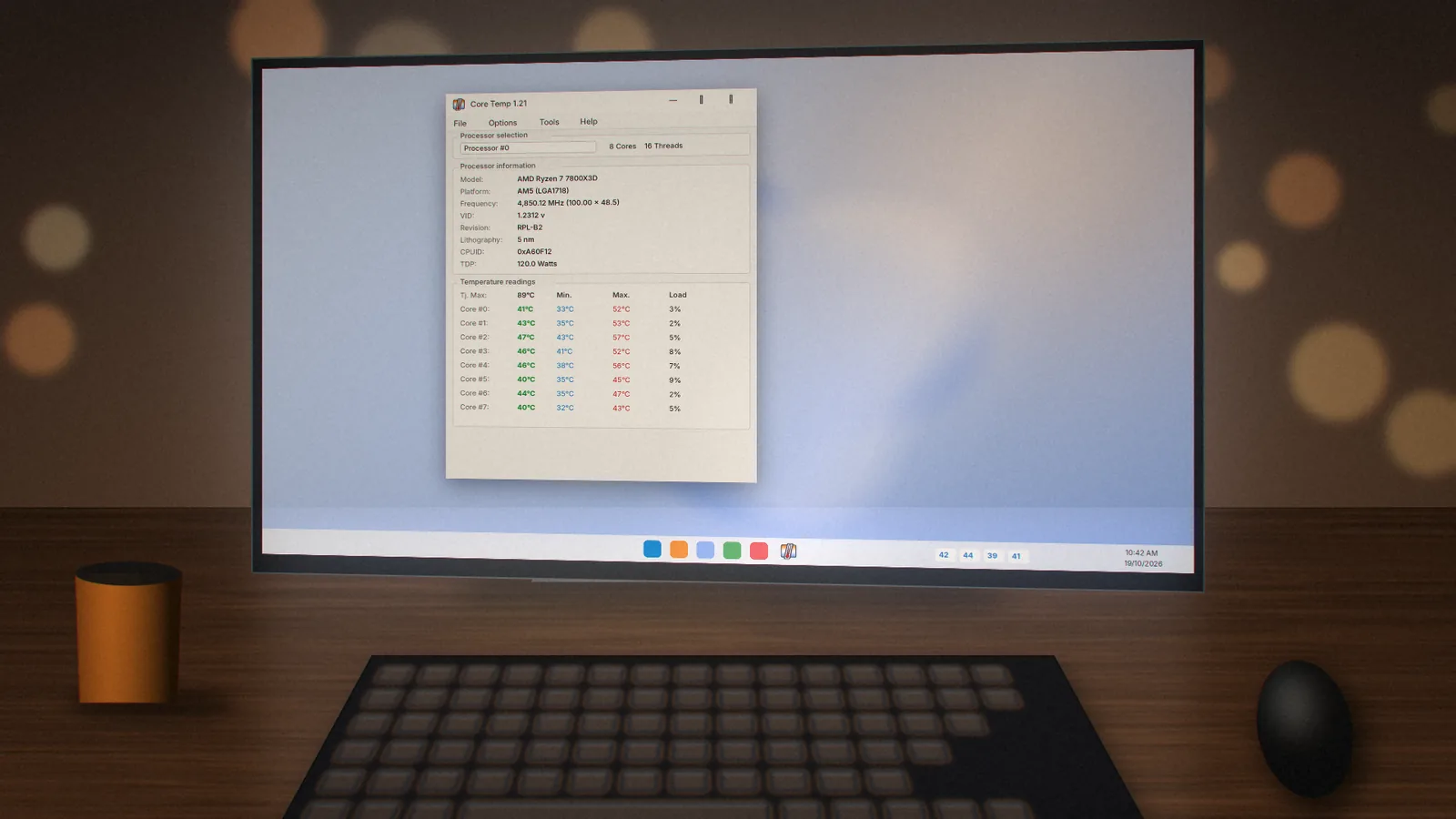
Core Temp on Windows 11
Windows 11 hides tray icons and handles startup apps a little differently. Here is how to make Core Temp feel at home.
 coretemp.org Editorial Team6 min readUpdated Oct 19, 2026
Key Takeaways
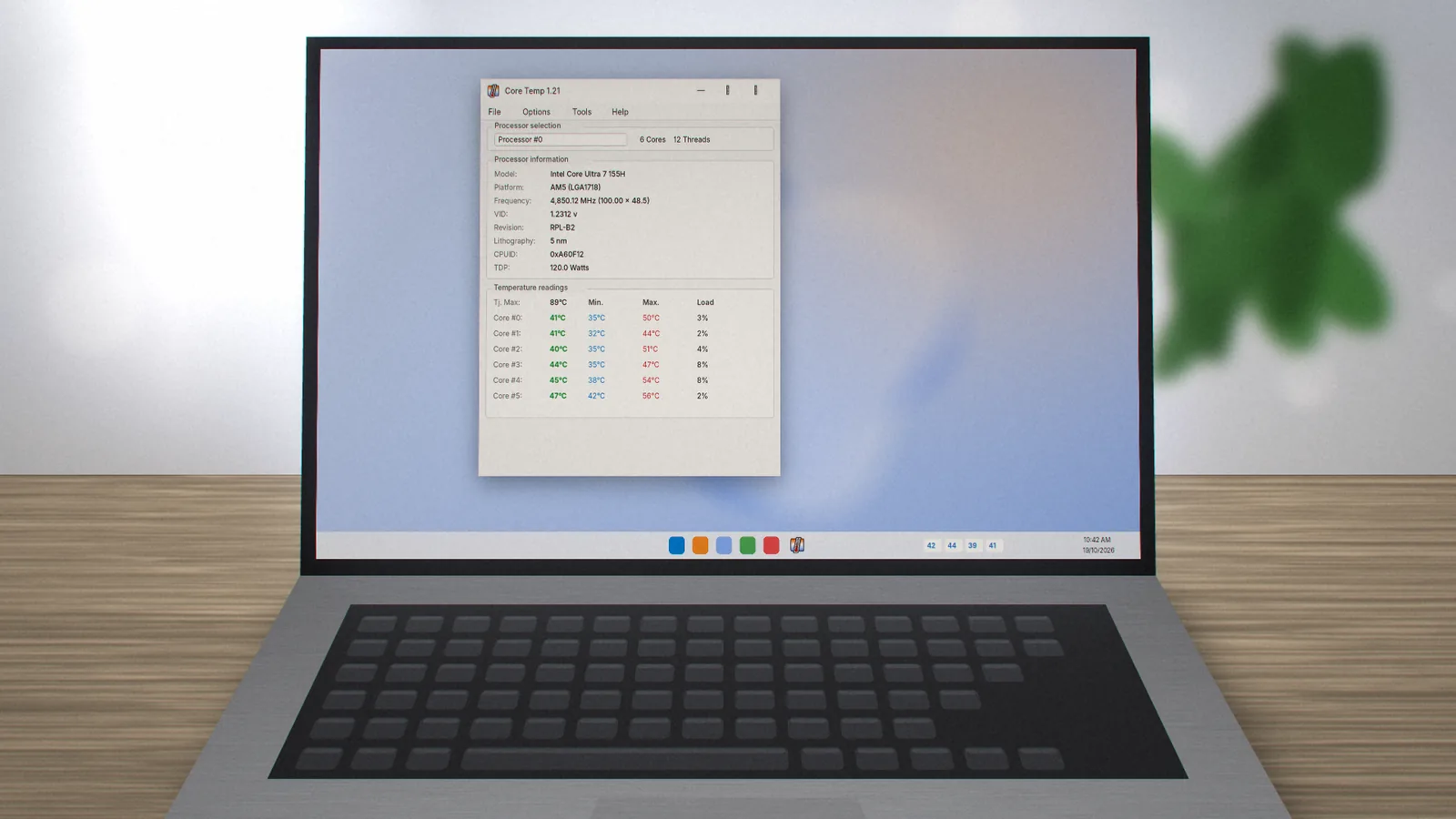
- Core Temp 1.21 supports Windows 11 and recent Intel and AMD processors.
- Windows 11 hides new tray icons by default; you need to allow Core Temp once.
- Use the built-in "Start Core Temp with Windows" option for automatic launch.
Core Temp runs well on Windows 11, but the new taskbar and stricter app controls mean a few settings are worth adjusting after installation.
Install on Windows 11
- Download the official installer from our download page.
- Verify the SHA-256 hash (instructions are on the download page).
- Run the installer, approve the administrator prompt and decline optional offers.
- Launch Core Temp from the Start menu.
Prefer the command line? Run winget install --id ALCPU.CoreTemp -e in Windows Terminal.
Show Temperatures in the Taskbar
In Core Temp, open Options › Settings › Notification Area and choose whether to show the highest temperature, every core, or frequency and load as well. Then open Windows Settings › Personalization › Taskbar › Other system tray icons and switch Core Temp on.
Start with Windows
Enable "Start Core Temp with Windows" in the General tab. If it does not launch, check Settings › Apps › Startup and make sure Core Temp is turned on there too.
Hybrid Intel CPUs
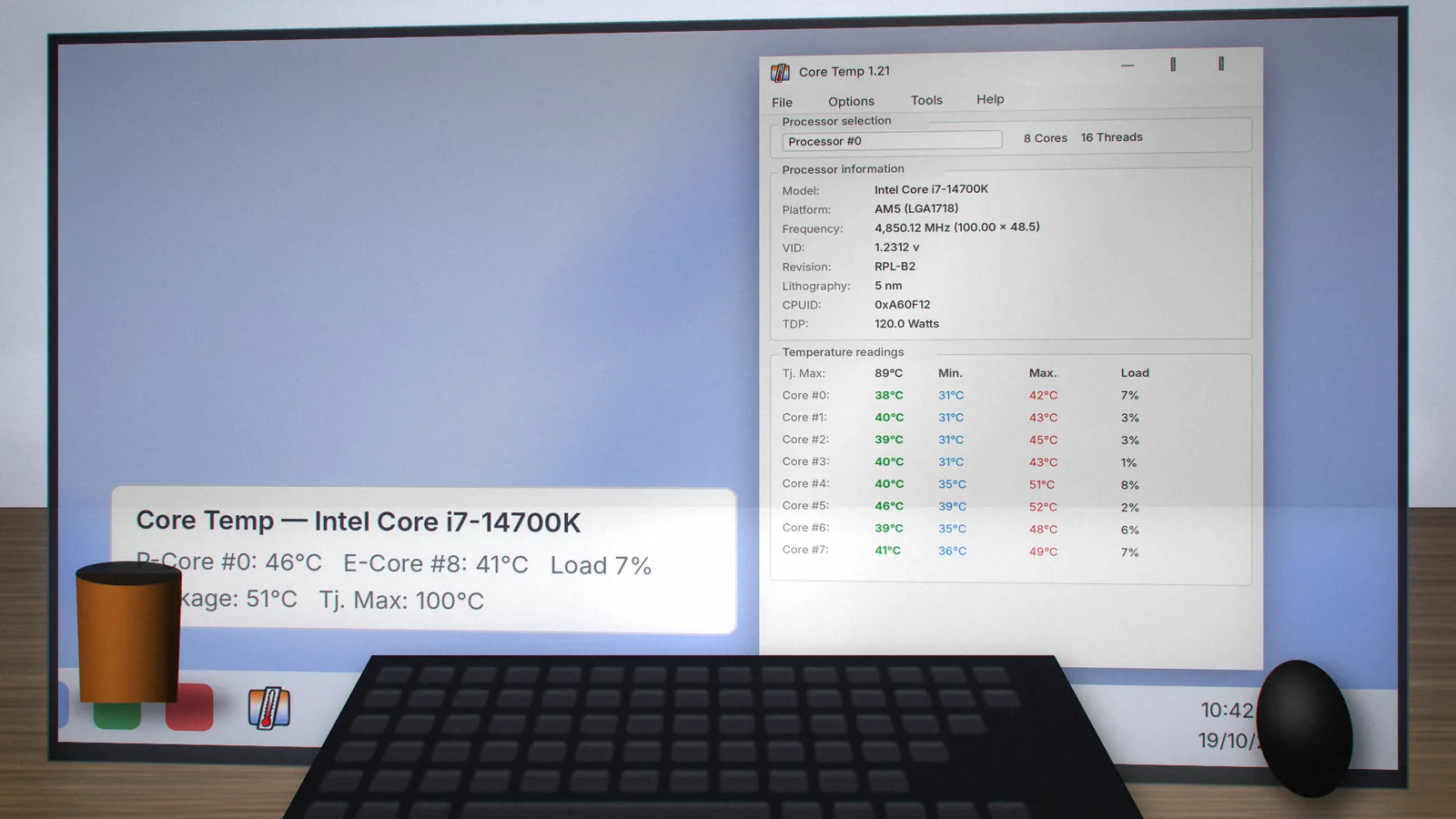
On processors with performance and efficiency cores, recent Core Temp versions show P-Core and E-Core indicators in tooltips. E-cores often run cooler and slower, so do not worry if their numbers differ from P-cores.
Quick Fixes
- Icons vanish after updates: update to 1.21, which fixes tray icon issues, then re-enable Core Temp under Other system tray icons.
- No temperatures on Ryzen after sleep: update to the latest version; 1.20.1 fixed this and 1.21 adds more fixes.
- Memory Integrity blocks the driver: some security features can prevent older drivers from loading; keep Core Temp updated to the latest release.
More help lives in the troubleshooting section.
coretemp.org Editorial Team
The coretemp.org team writes practical guides to downloading, using and troubleshooting Core Temp. Learn more about us or suggest a correction.