Core Temp vs HWMonitor vs HWiNFO
Three popular Windows monitoring tools, one honest comparison. Here is where each shines and which one we keep installed.
 coretemp.org Editorial Team9 min readUpdated Oct 19, 2026
Key Takeaways
- Core Temp: best for lightweight, always-on CPU temperature monitoring with overheat protection.
- HWMonitor: best for a quick, readable snapshot of every sensor in the system.
- HWiNFO: best for deep diagnostics, overclocking and detailed logging.
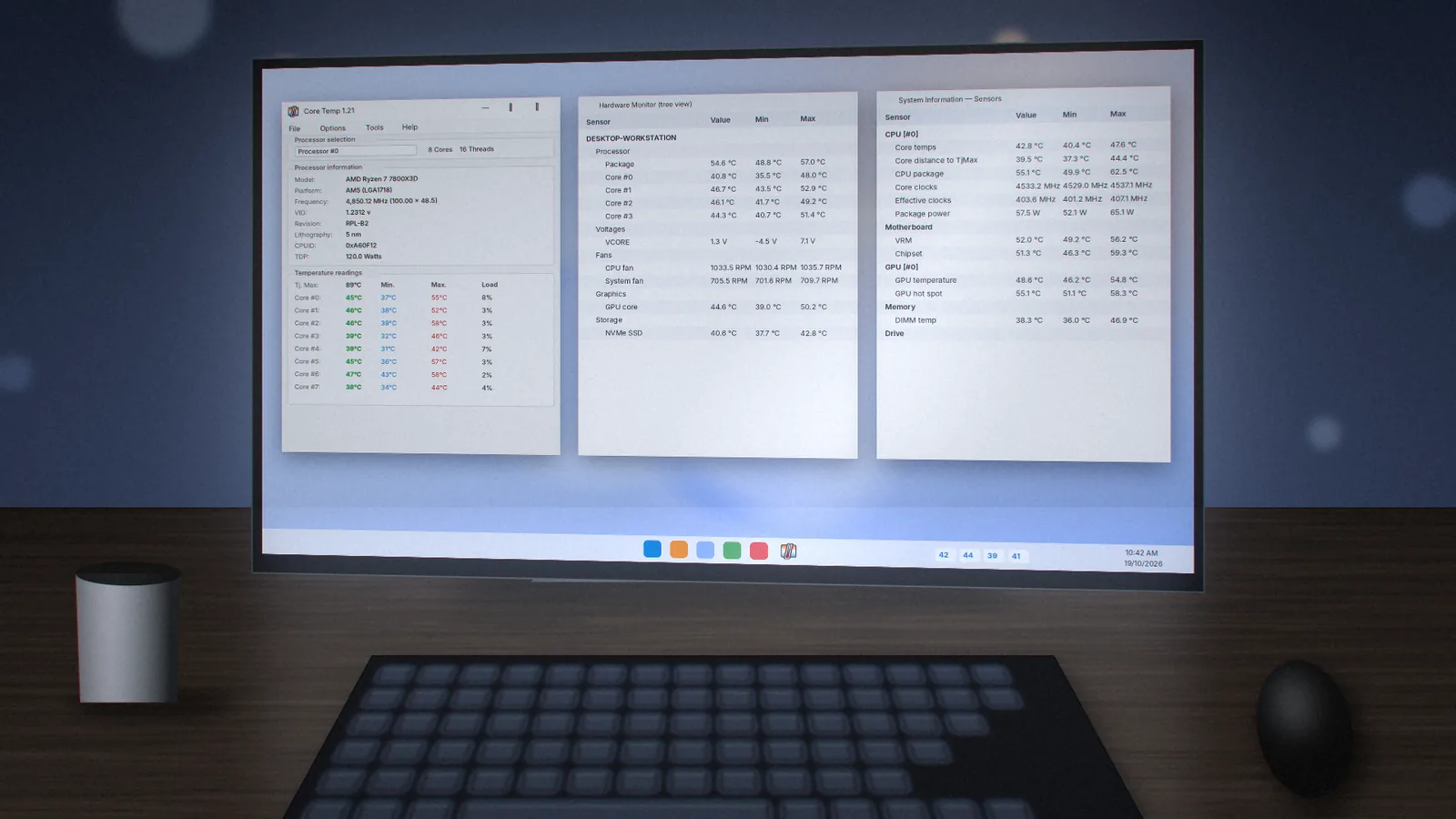
All three tools read the same digital sensors, so for CPU temperature they usually agree within a degree or two. The real differences are scope, footprint and features built around those readings.
The Tools at a Glance
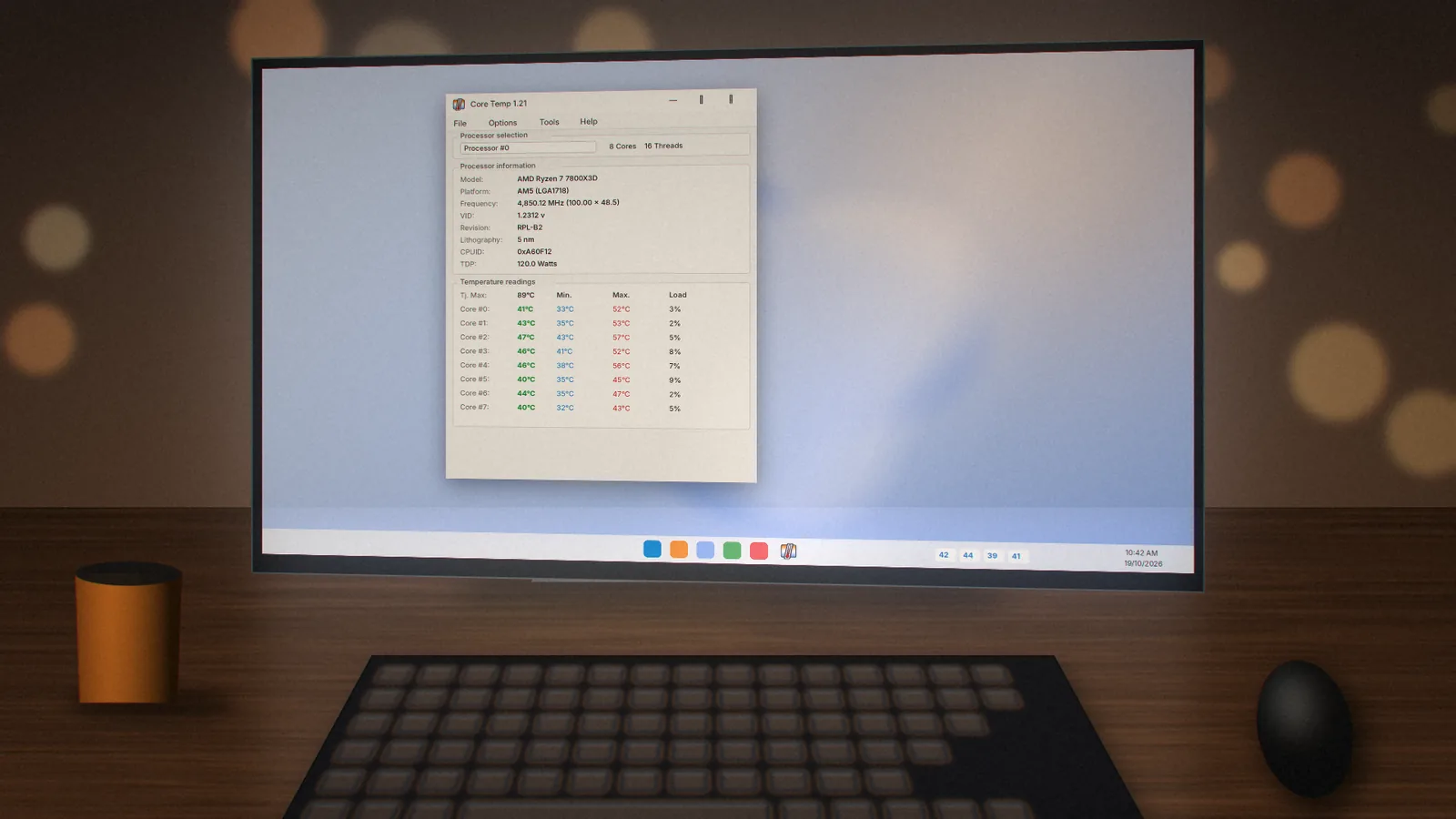
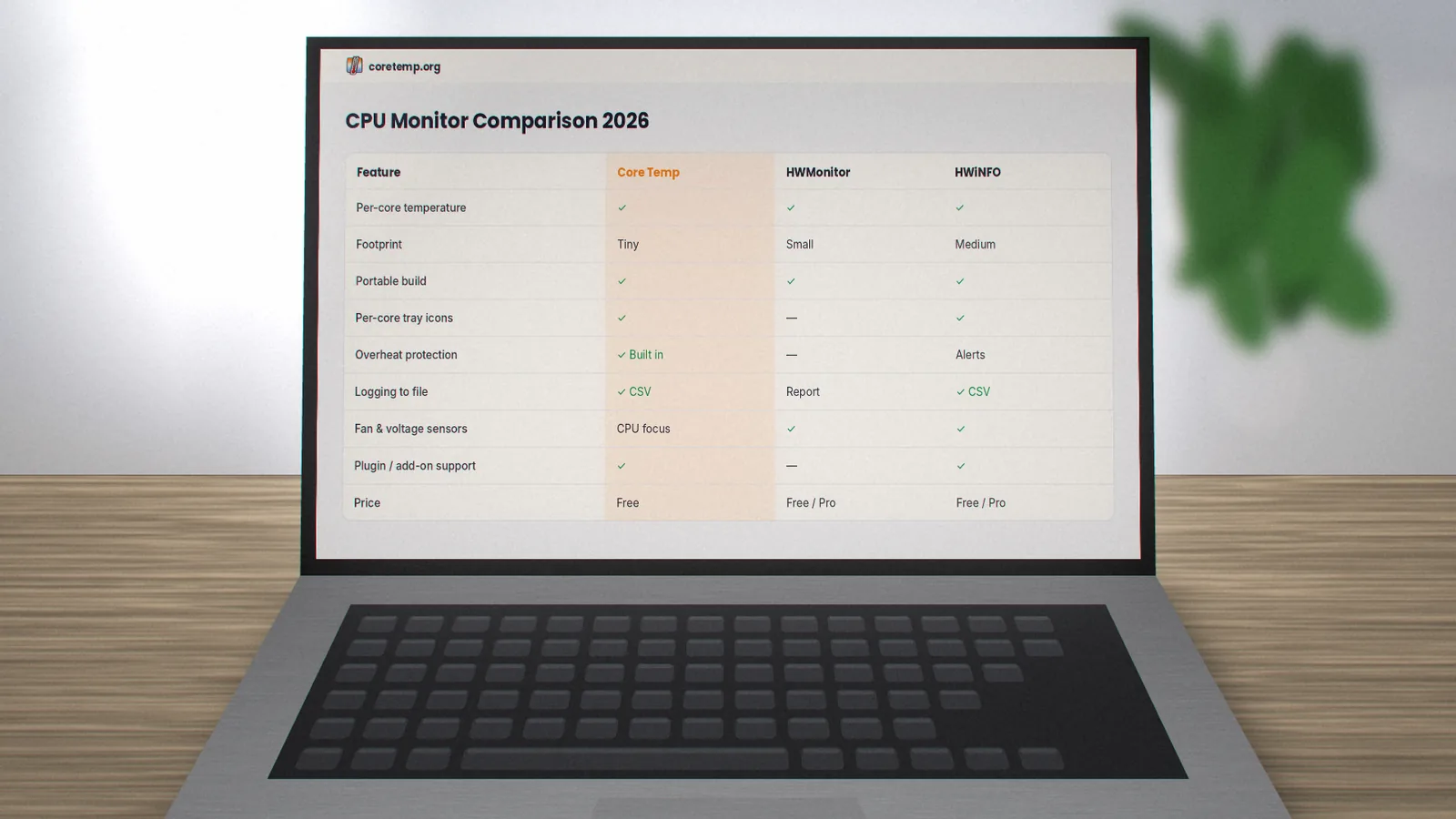
Core Temp, by Arthur Liberman, focuses on the processor: per-core temperatures, load, frequency and Tj. Max, plus tray icons, logging and overheat protection. HWMonitor, by CPUID, shows a tree of temperatures, voltages, fan speeds and power for the CPU, GPU, drives and motherboard. HWiNFO is a full system information and sensor suite with hundreds of readings, alerts and extensive logging.
Accuracy
For the CPU, accuracy is effectively a tie because each tool reads the processor's own thermal sensors. Differences appear when a program shows a different sensor, for example package temperature instead of the hottest core, or when support for a brand-new CPU has not arrived yet. Keeping your chosen tool updated matters more than which one you choose.
Footprint and Performance
Core Temp is a small program that uses very little memory, so it is easy to leave running all day. HWMonitor is also light. HWiNFO polls far more sensors, which costs a little more CPU time; you can reduce this by hiding sensors you do not need.
Features That Matter Day to Day
| Feature | Core Temp | HWMonitor | HWiNFO |
|---|---|---|---|
| Per-core CPU temperature | Yes | Yes | Yes |
| Per-core tray icons | Yes | No | Yes |
| Overheat protection action | Yes | No | Alerts |
| GPU, fan and drive sensors | CPU focus | Yes | Yes |
| Logging | CSV | Report | CSV |
| Price | Free | Free / Pro | Free / Pro |
Which One Should You Pick?
- Choose Core Temp if you want a tiny always-on monitor, temperatures in the taskbar and an automatic shutdown or sleep if things get dangerous.
- Choose HWMonitor if you want one window with every sensor in the PC and no configuration.
- Choose HWiNFO if you tune, overclock or troubleshoot and need detailed graphs, alerts and long logs.
Many enthusiasts run Core Temp permanently and open HWiNFO only when diagnosing a specific problem. See the full alternatives table for more options, or download Core Temp to try the lightweight approach.
coretemp.org Editorial Team
The coretemp.org team writes practical guides to downloading, using and troubleshooting Core Temp. Learn more about us or suggest a correction.