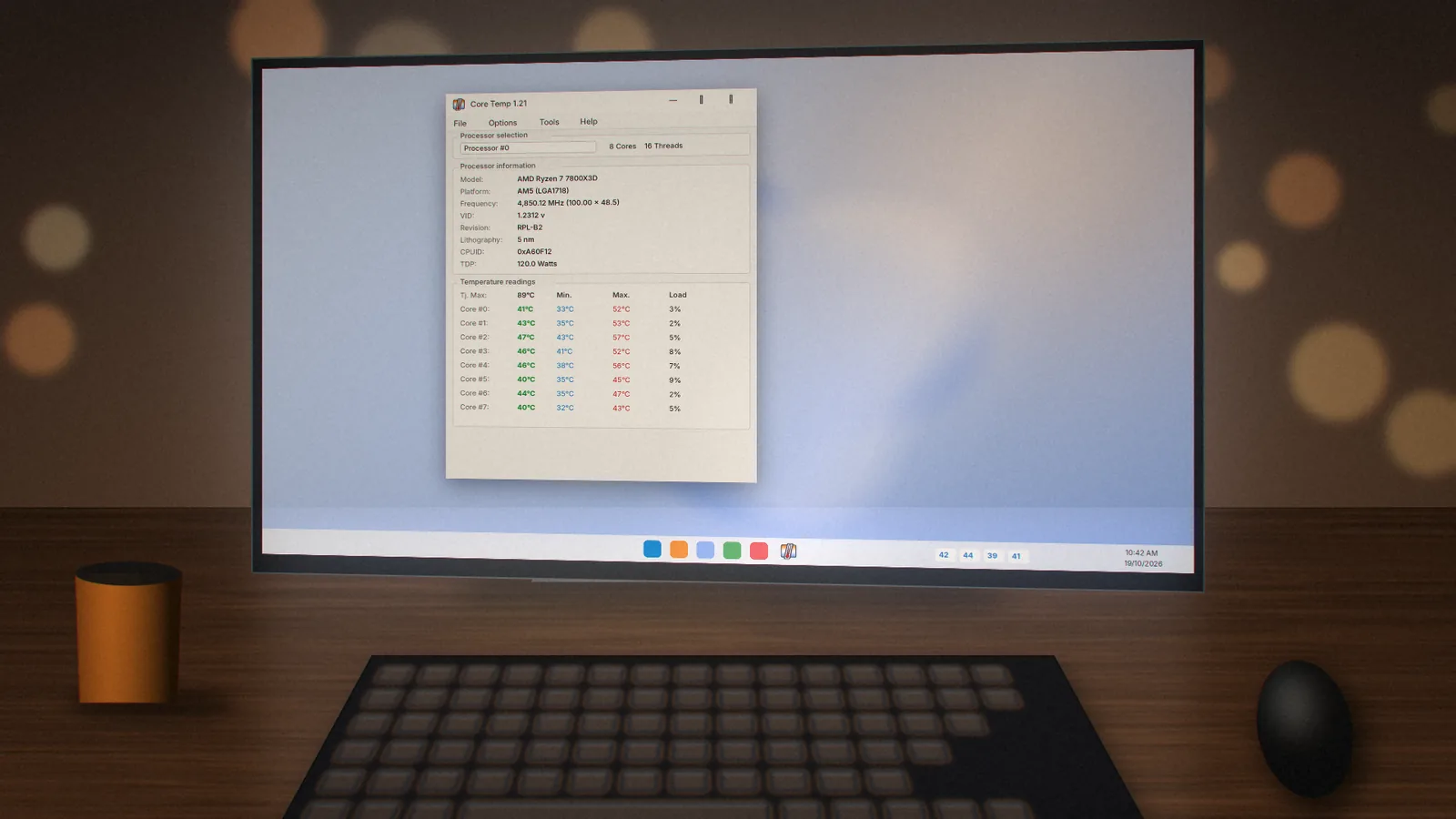
Core Temp for Gaming PCs
Frame drops after twenty minutes of play are often heat, not your GPU. Here is how gamers use Core Temp to catch it.
 coretemp.org Editorial Team7 min readUpdated Oct 19, 2026
Key Takeaways
- Log a full session; a single glance misses slow heat build-up.
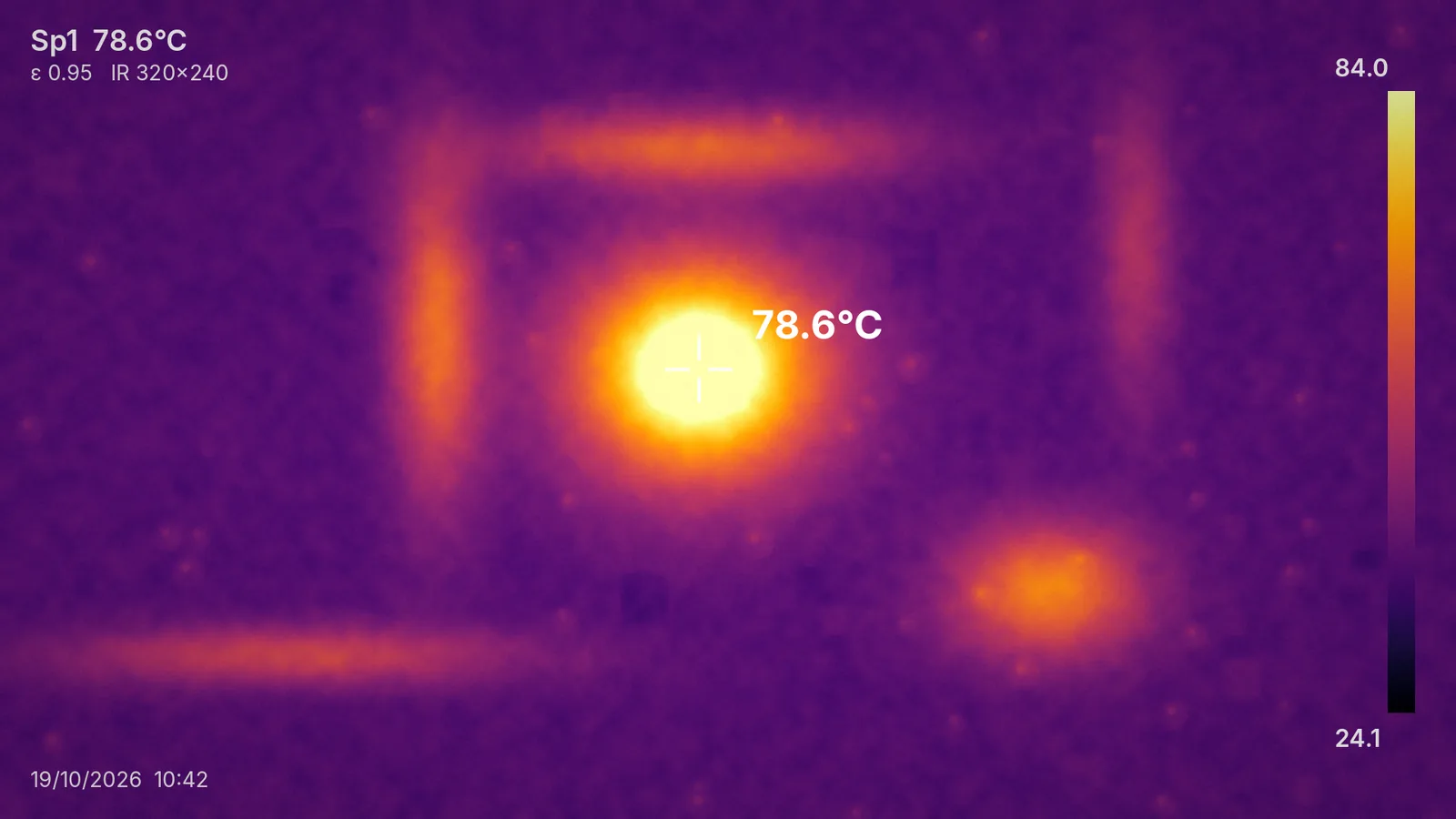
- 60–80°C during gaming is normal for most desktops.
- Falling clock speeds at high temperatures point to throttling.
Games load the CPU in bursts, and heat builds slowly in small cases. Core Temp's light footprint means it can run alongside any game without costing frames.
Set Up for Gaming
- Enable tray icons for the hottest core so you can check between matches.
- Set logging to every 5–10 seconds; a 90-minute session stays small.
- Turn on overheat protection with a notification at a sensible limit.
Seeing Temps In Game
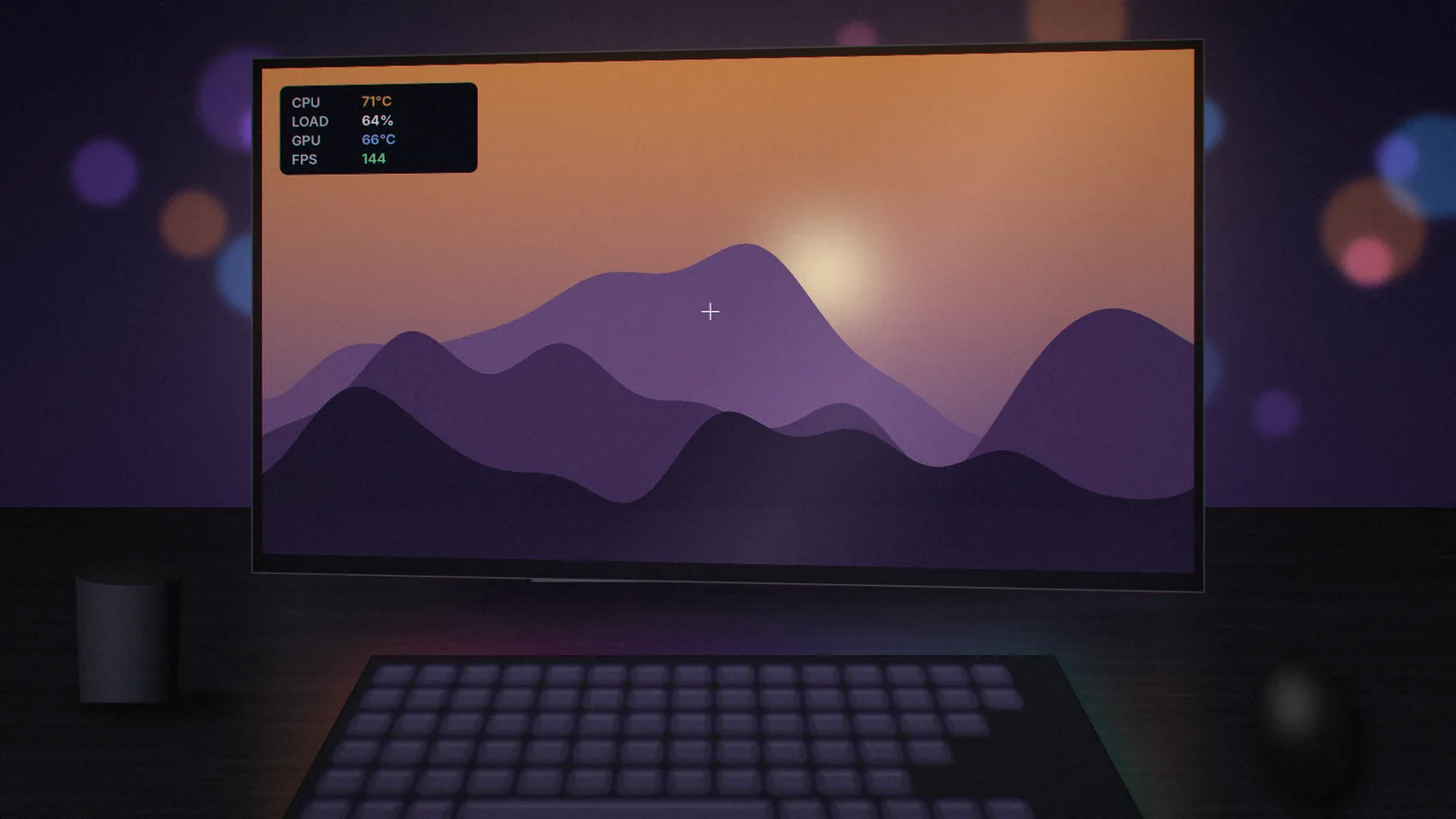
Core Temp supports plugins and exposes its readings through a shared-memory interface that other tools can read. Many on-screen display utilities and desktop widgets can display that data, so you can see CPU temperature in a corner of the screen while you play.
Log a Real Session
- Close Core Temp and reopen it to reset Min and Max.
- Enable logging, then play normally for at least 30 minutes.
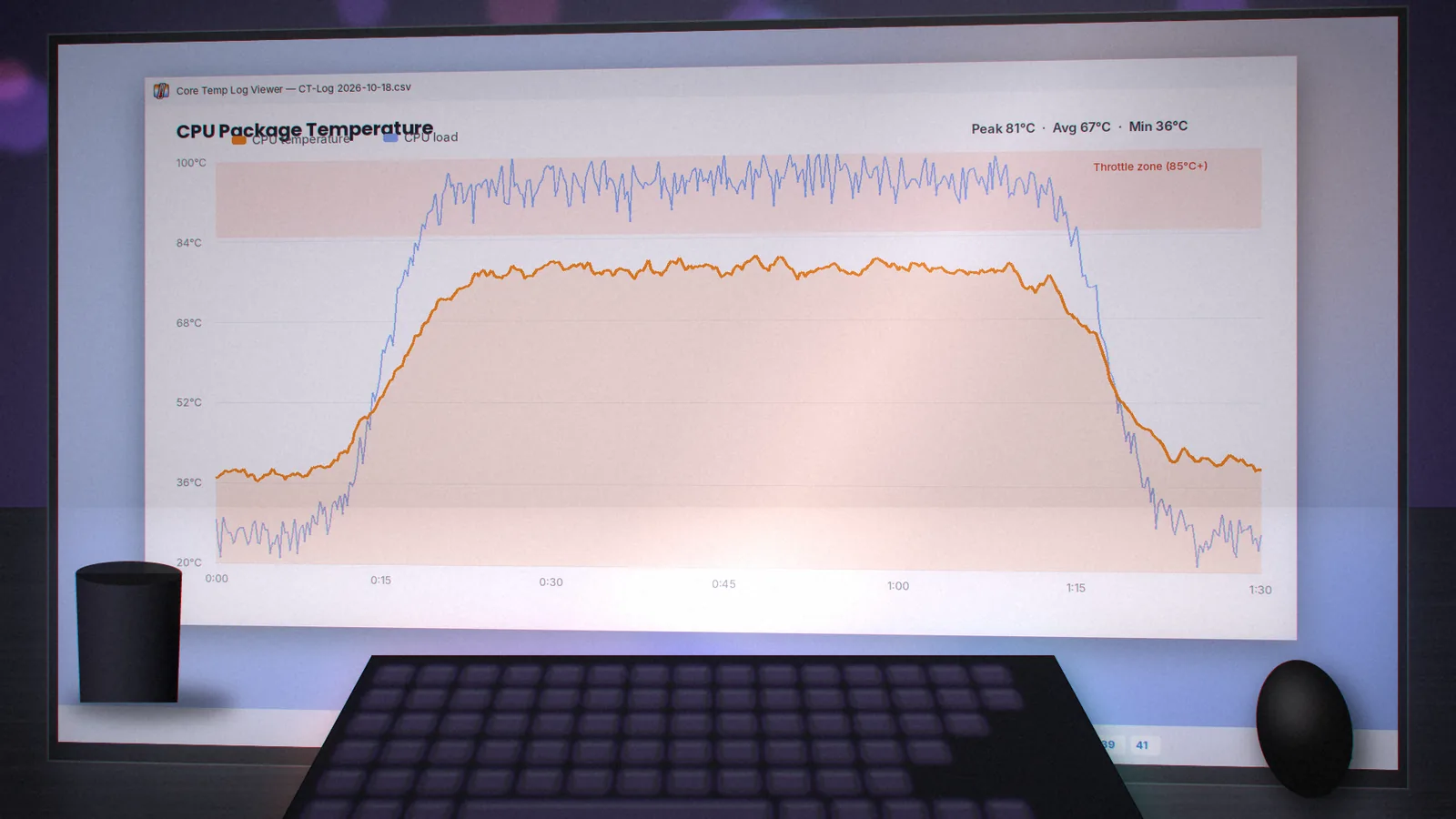
- Open the CSV in a spreadsheet and chart temperature against time.
Reading the Results
A healthy curve climbs as the game loads, then flattens. Trouble looks like a line that keeps rising, or sharp dips in frequency when temperature touches the top band. Compare your peak with our normal temperature ranges.
Easy Wins for Gamers
- Cap frame rates in menus and lighter games to cut heat and noise.
- Clean filters monthly if you have pets or carpet.
- Give your case front intake room to breathe.
- Repaste older systems; see our overheating fix guide.
Ready to start? Download Core Temp and log your next session.
coretemp.org Editorial Team
The coretemp.org team writes practical guides to downloading, using and troubleshooting Core Temp. Learn more about us or suggest a correction.