How to Fix CPU Overheating
Core Temp says your processor is running hot. Work through these steps, from free two-minute checks to a full repaste, and watch the numbers fall.
 coretemp.org Editorial Team9 min readUpdated Oct 19, 2026
Key Takeaways
- Most overheating comes from dust, poor airflow or an old thermal interface.
- Log temperatures in Core Temp before and after each change so you know what worked.
- Enable Core Temp's overheat protection while you troubleshoot.
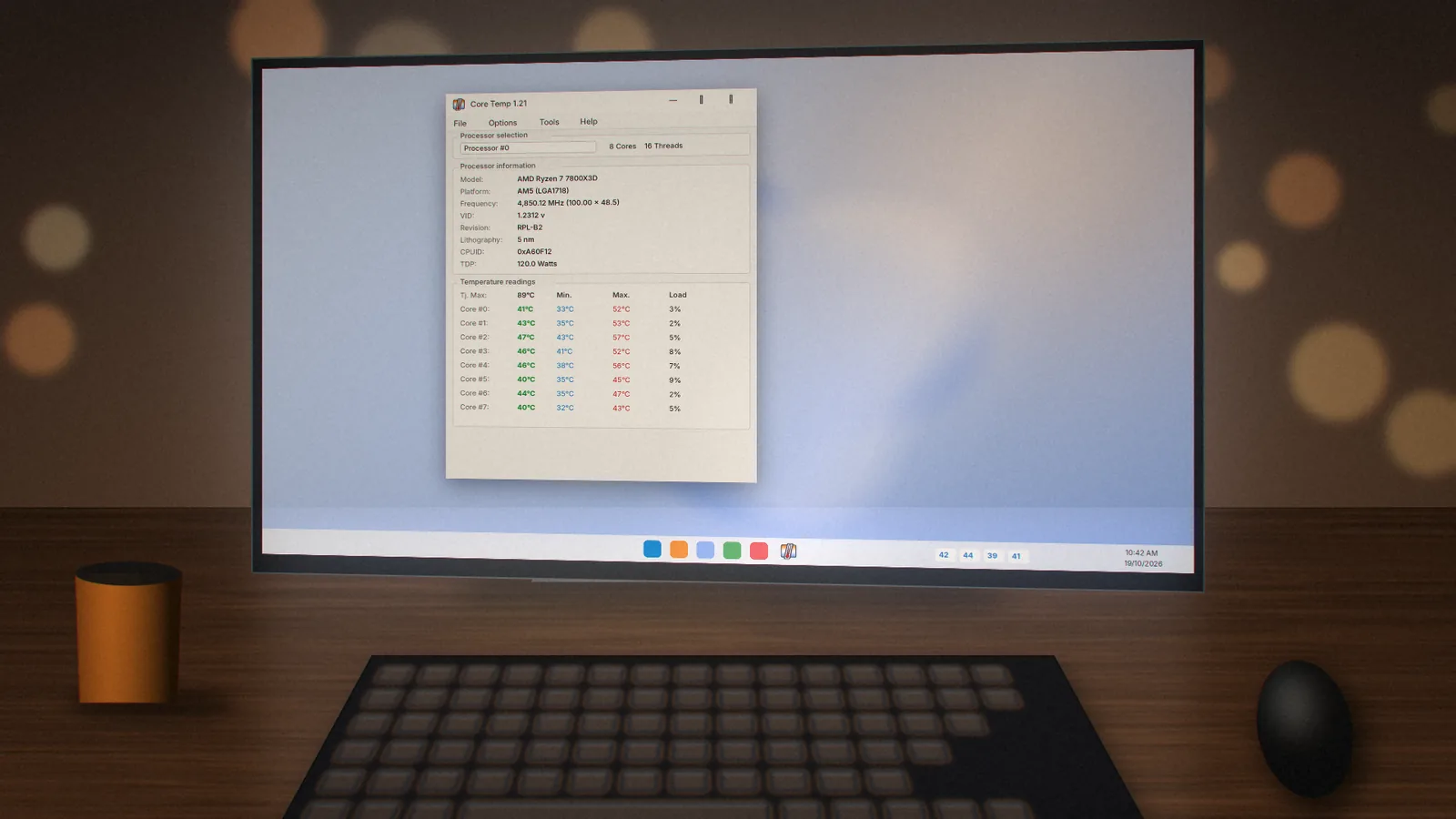
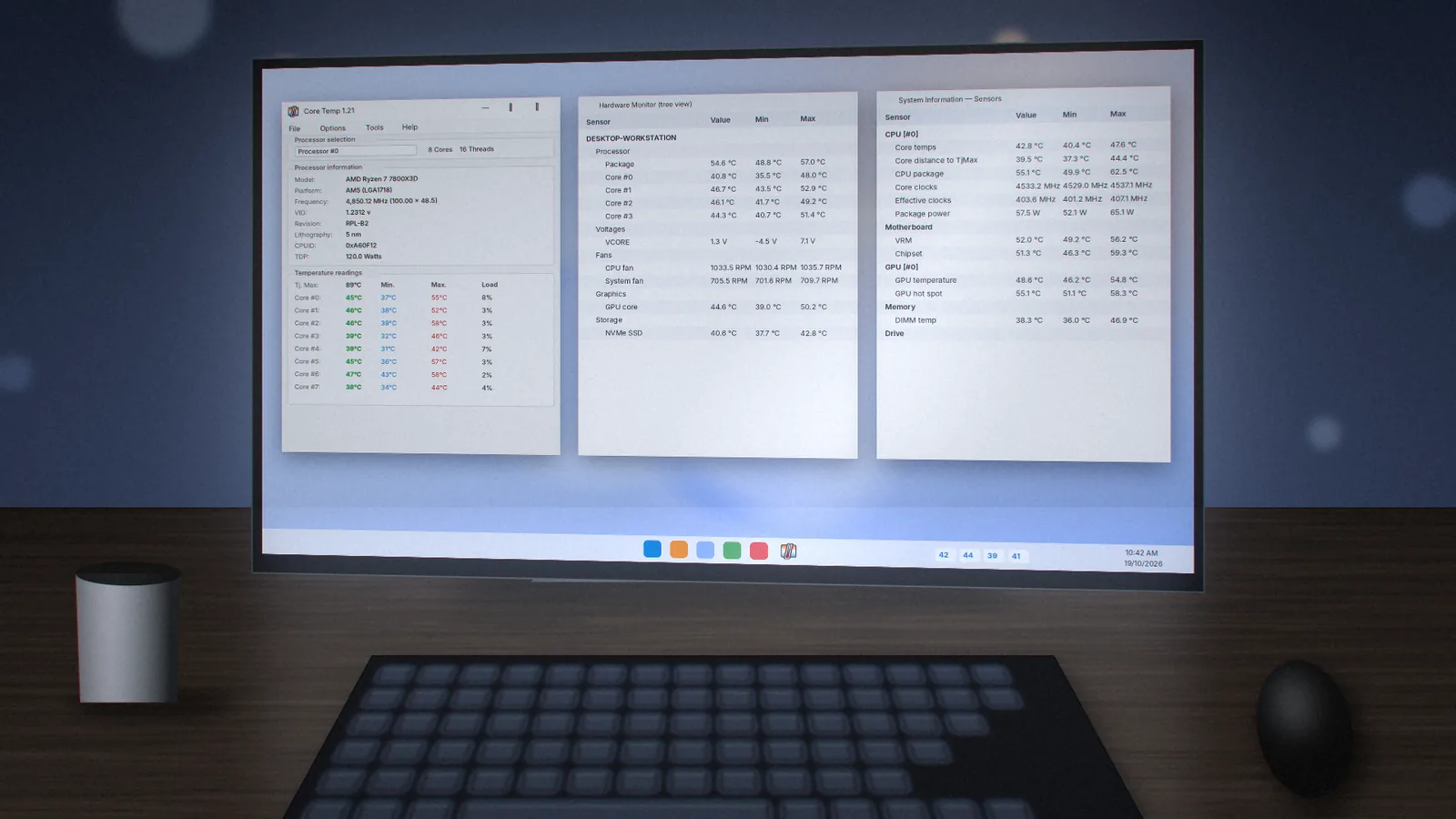
Before changing anything, record a baseline. Open Core Temp, enable logging, run your usual workload for 20 minutes and note the Max column. Repeat the same test after each step.
1. Clean Out the Dust
Dust on heatsink fins acts like a blanket. Shut down, unplug, and use short bursts of compressed air on the CPU cooler, case fans and filters. Hold fan blades still so they do not over-spin. On laptops, blow air through the exhaust vents.
2. Fix Case Airflow
Aim for a clear path: cool air in at the front or bottom, warm air out at the back or top. Tidy cables that block intake fans and make sure the PC is not pushed against a wall.
3. Adjust Fan Curves
In your BIOS or motherboard utility, set the CPU fan to ramp up earlier, for example 60% at 60°C. Quiet presets sometimes let the chip heat up before fans respond.
4. Check the Power Plan
A "maximum performance" plan can keep clocks high at idle. Try Balanced in Windows power settings, especially on laptops.
5. Hunt Background Load
If Core Temp shows high load at idle, open Task Manager (Ctrl+Shift+Esc) and sort by CPU. Updates, indexing or unwanted software can keep cores busy.
6. Replace the Thermal Paste
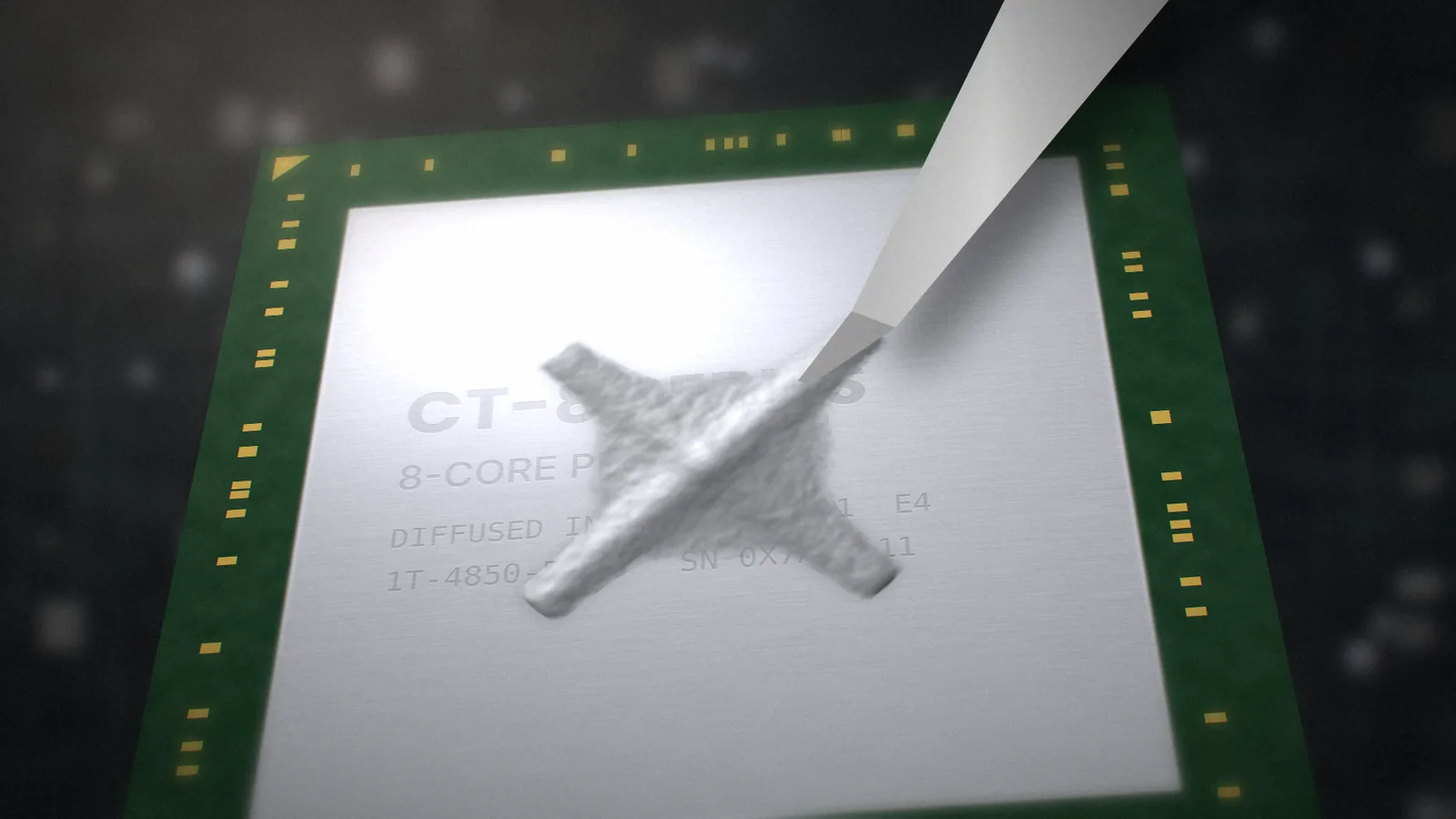
Paste dries out over the years. Remove the cooler, clean both surfaces with isopropyl alcohol, then apply a pea-sized dot or a thin X pattern and reseat the cooler evenly.
7. Check Cooler Mounting
A large difference between cores under equal load can mean uneven pressure. Tighten screws in a diagonal pattern, a few turns at a time.
8. Consider Undervolting or Limits
Many CPUs run cooler with a small negative voltage offset or a lower power limit, often with almost no performance loss. Make small changes and test stability.
9. Upgrade the Cooler
If a stock or slim cooler cannot keep up with a high-end chip, a larger tower air cooler or an all-in-one liquid cooler is the lasting fix.
Keep Protection On
In Core Temp, open Options › Overheat Protection and choose an action such as a notification or sleep when a temperature limit is reached. It is a simple safety net while you work through these steps. See the user guide for the exact settings, and compare your results with our normal temperature ranges.
coretemp.org Editorial Team
The coretemp.org team writes practical guides to downloading, using and troubleshooting Core Temp. Learn more about us or suggest a correction.